Changelog

Follow new updates and improvements to Trially.

New features: Add custom criteria, edit/remove criteria
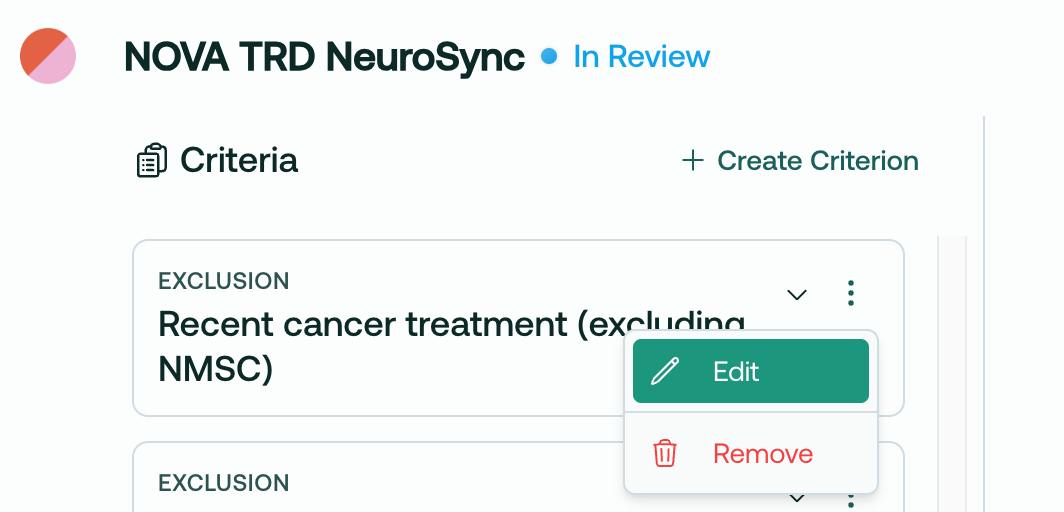
Trially Site Admins and Admins can now edit, remove and add custom I/E criteria!

Overview

  1. Upload your protocol document

  2. Wait 2-4 minutes for the AI to parse and process the document

  3. Open the protocol in the Main page

  4. Review the AI-parsed criteria

  5. Edit criteria, remove unwanted criteria, and add custom criteria

  6. Voila! Finalize your review by sending the protocol to the matching engine!

This process allows you to customize your recruiting plan before patient matching begins.


Details

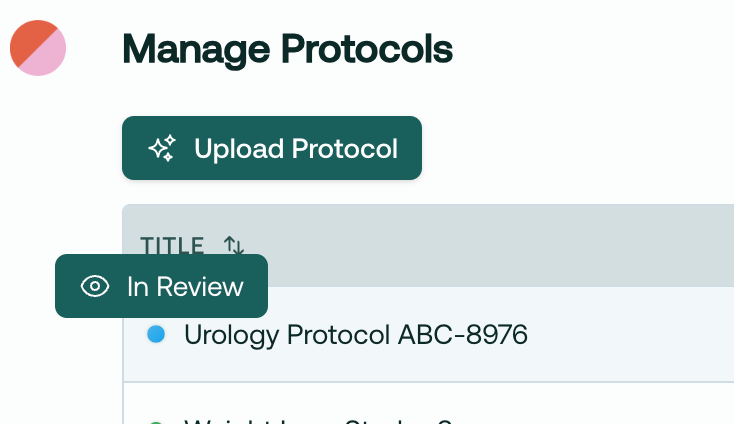
When you upload a protocol, it will take 2-4 minutes to process into the system, and then be marked as In Review:
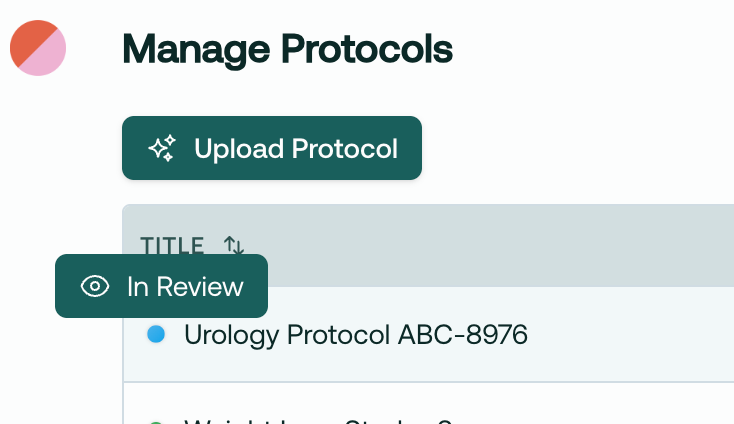
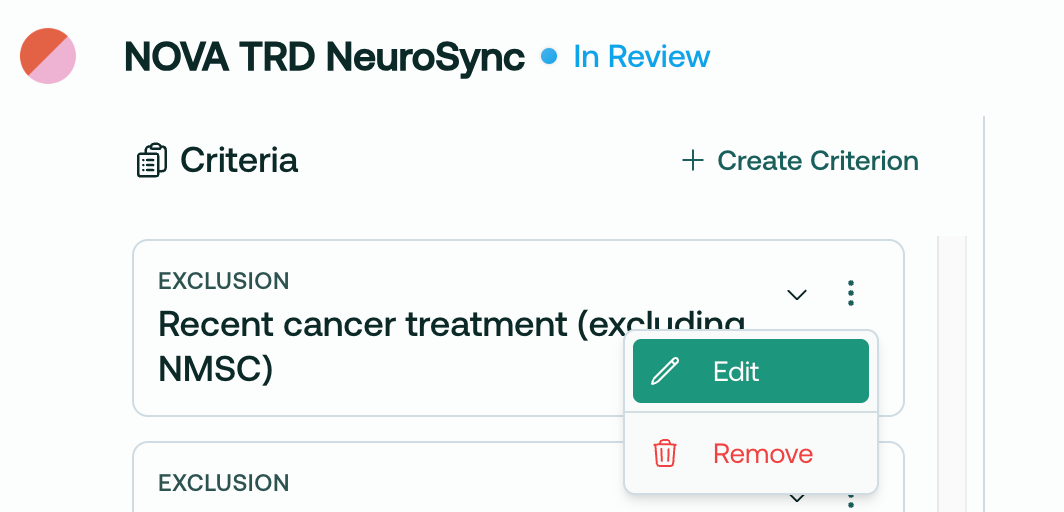
Then, simply hop over to the Main page and select this protocol. You will have the option to edit, remove, and add criteria to customize your recruiting plan on the main page.

Remove criteria

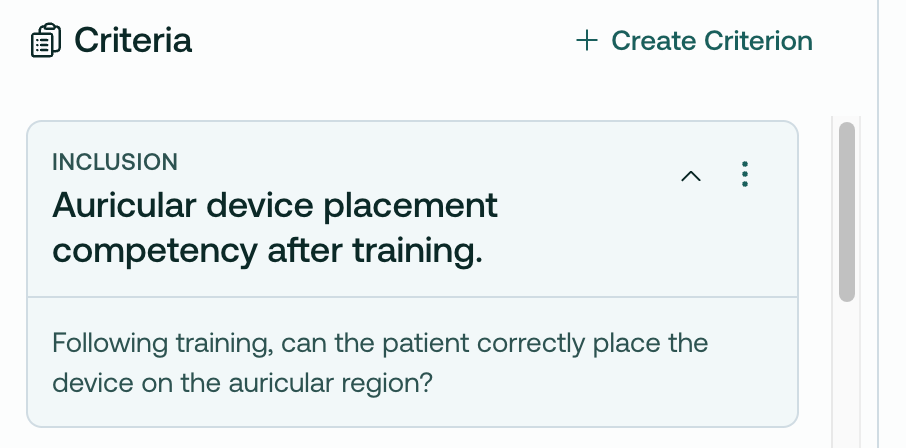
Say we’ve identified an I/E criteria that we know can’t be found in the patient’s chart, like this one:
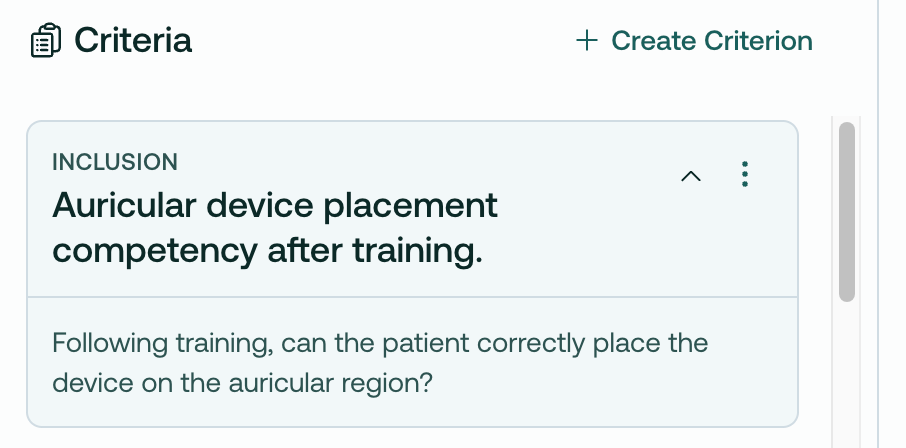
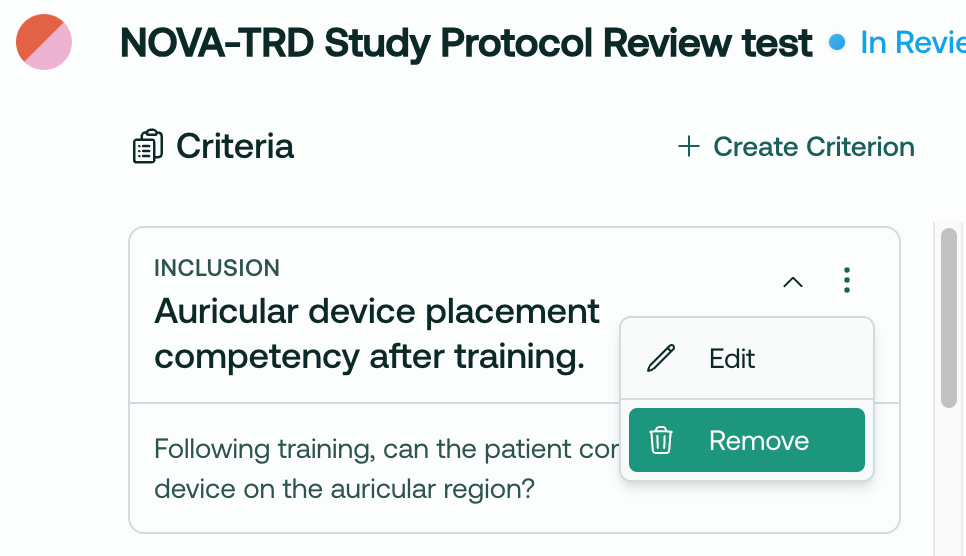
We can simply remove it:
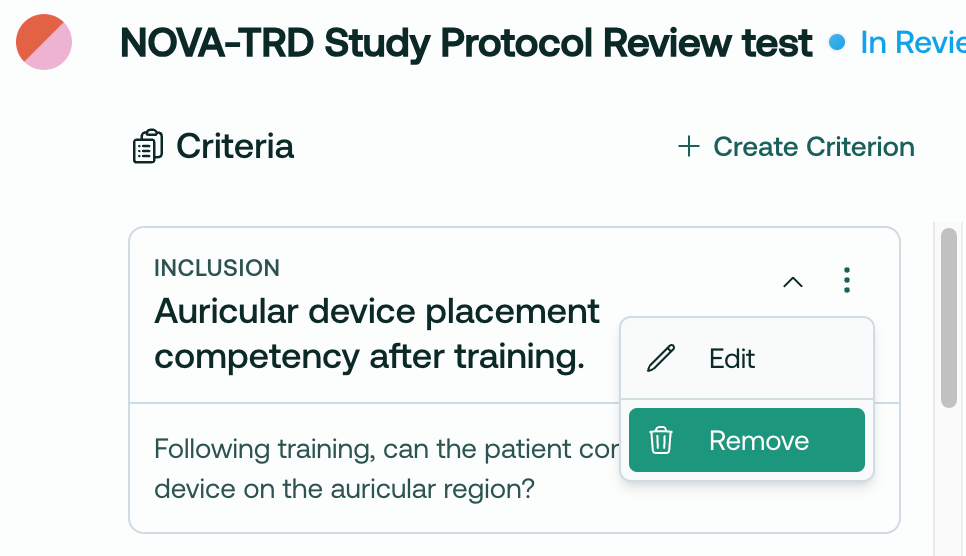
This cleans up your recruiting view, and also prevents the AI from attempting to match against impossible criterion.

Edit criteria

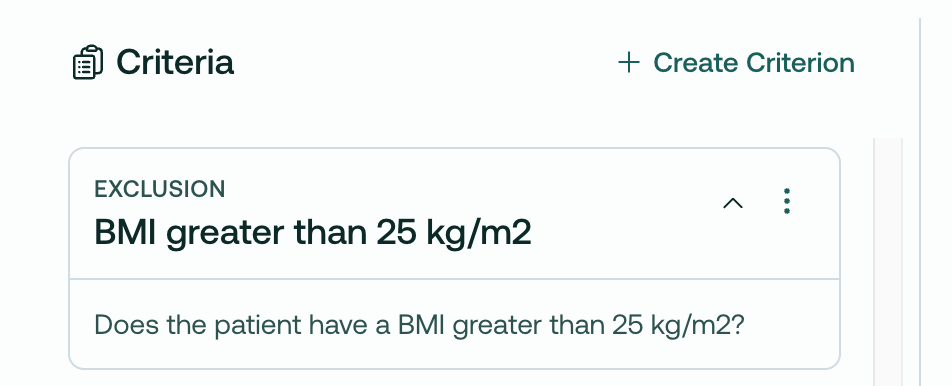
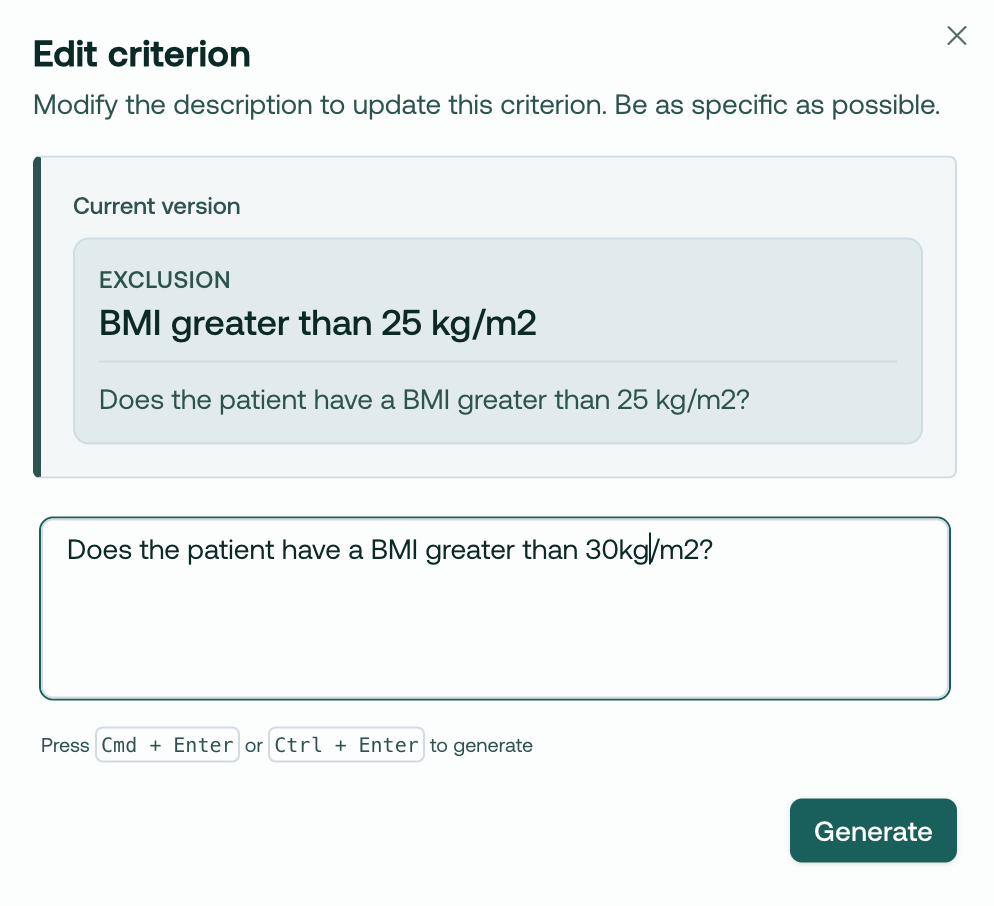
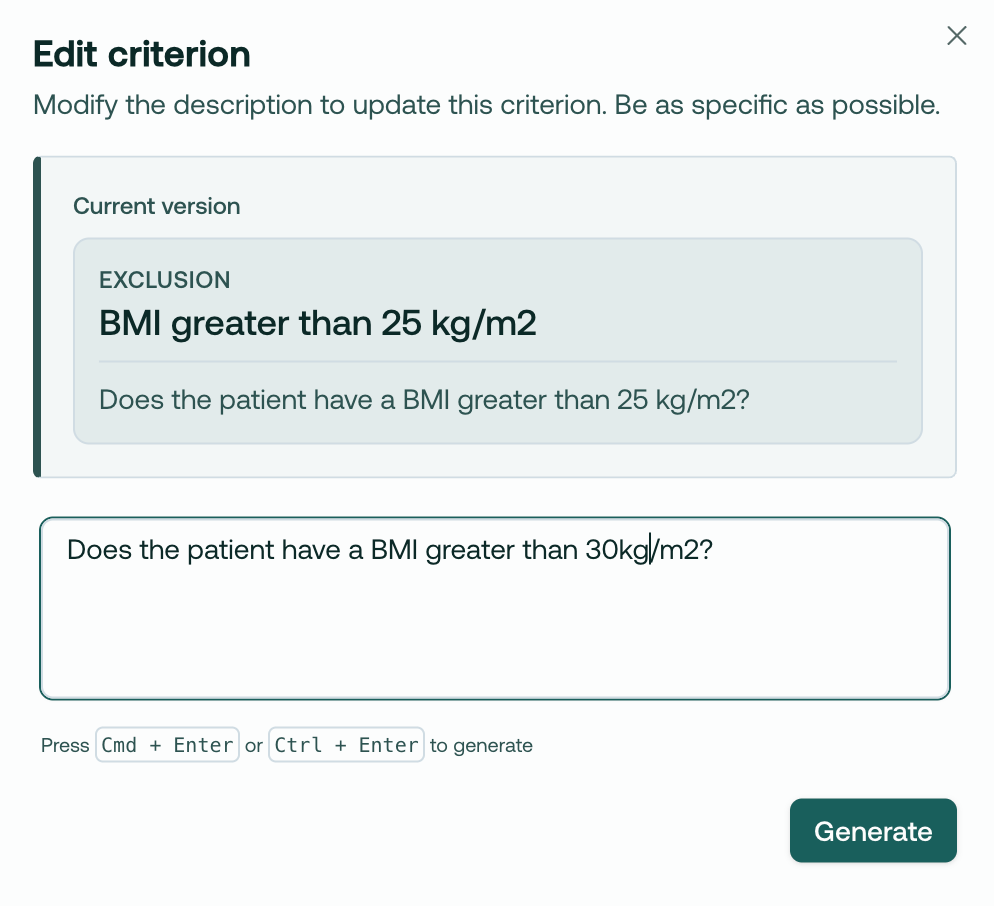
Or, imagine you’d like to edit a criteria. BMI can change, so you may want to loosen this, knowing you will get an up-to-date measurement at a future in-person visit:
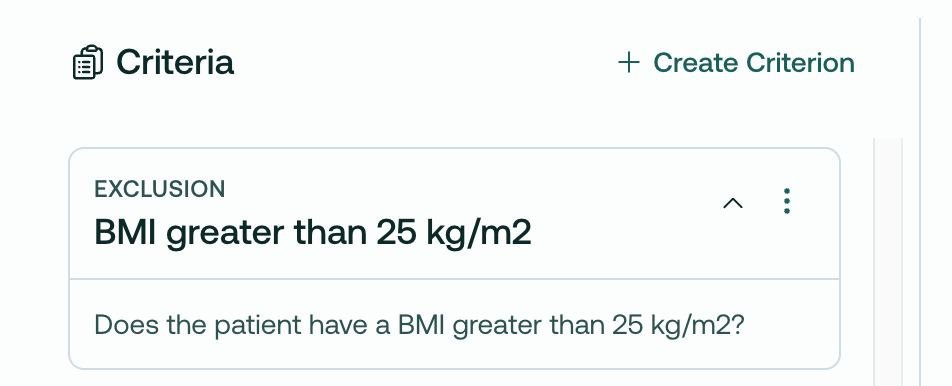
You can edit it directly in the app, like so:
Create custom criteria

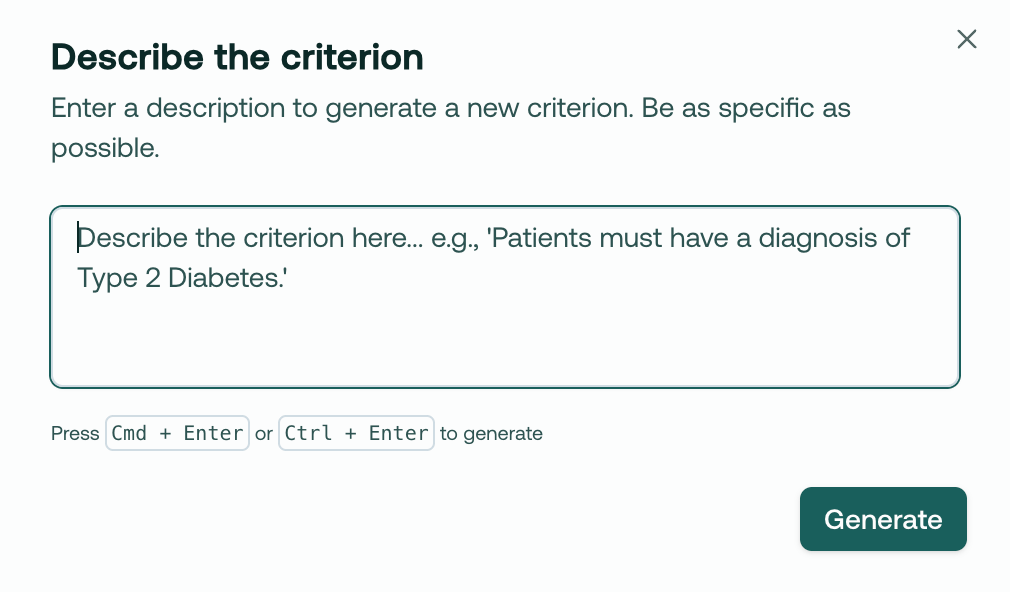
You can now add custom criteria to any protocol!

Simply click Create Criterion, then type in whatever criteria you want.
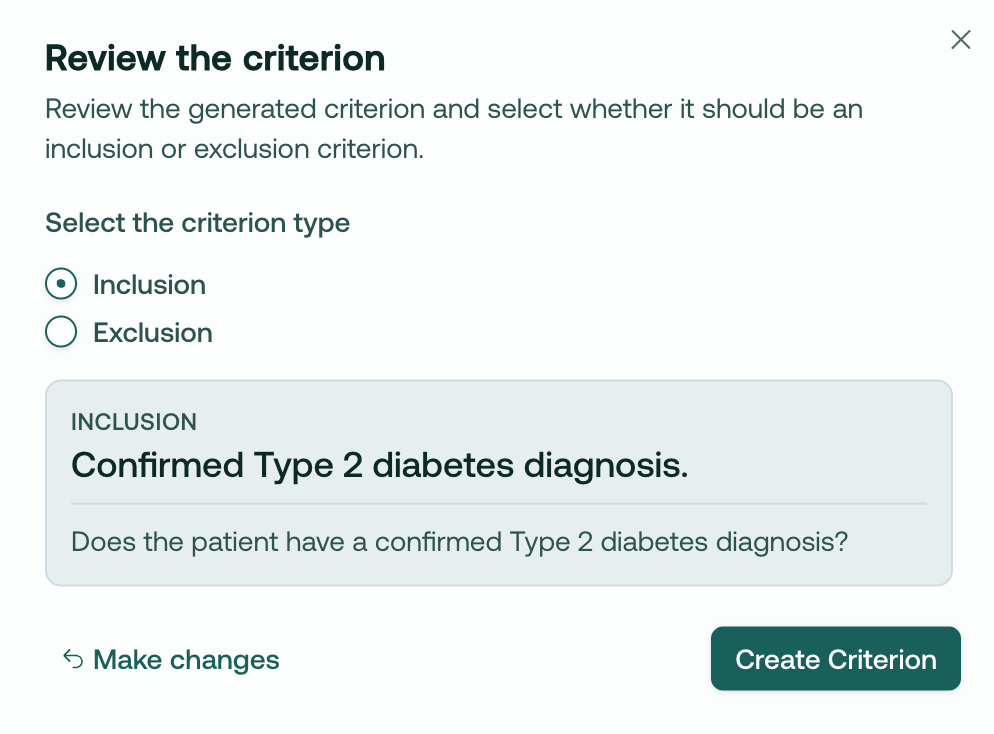
Our AI will create a valid I/E criteria based on your text:

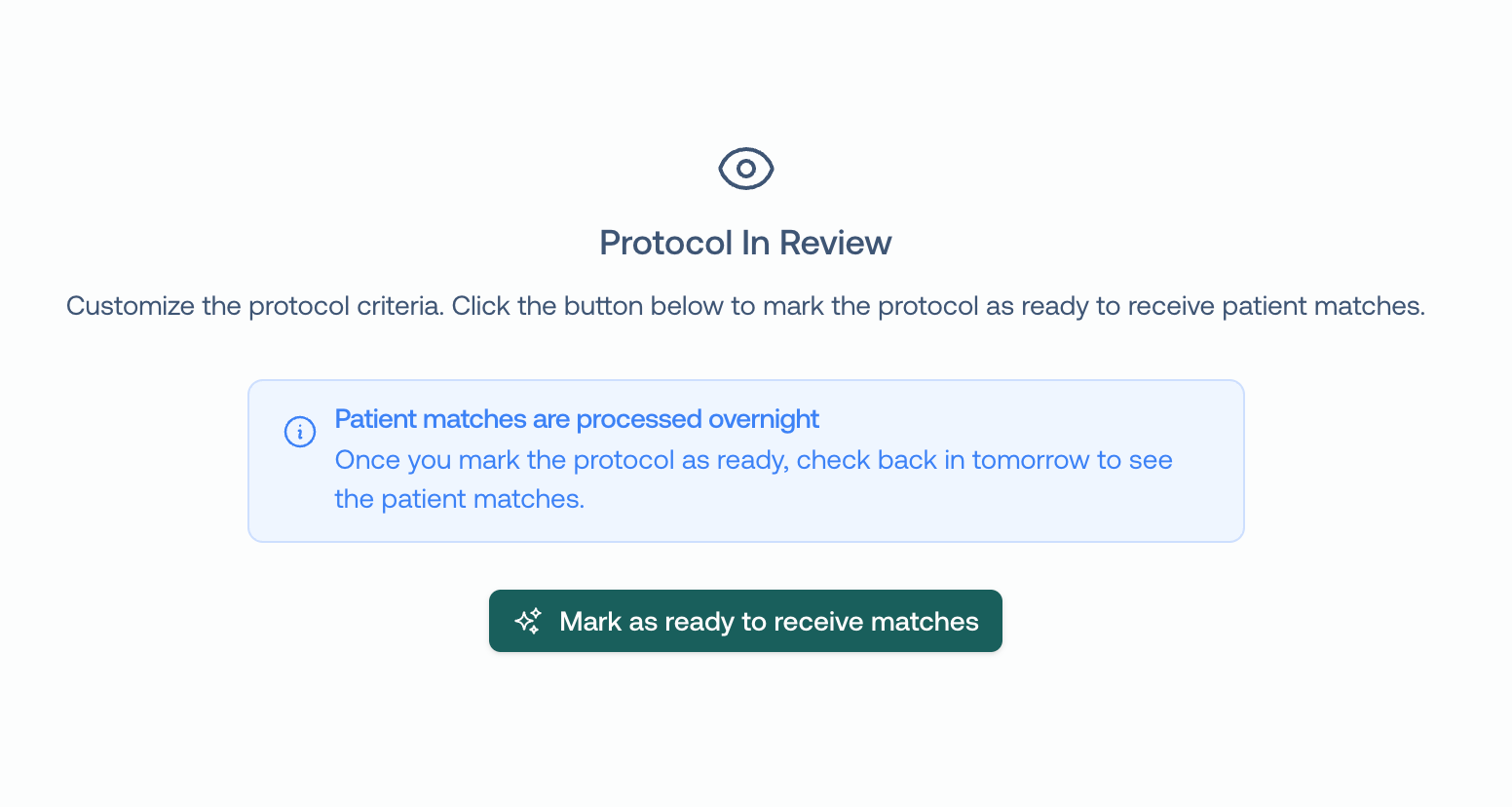
Complete the review, and begin matching!

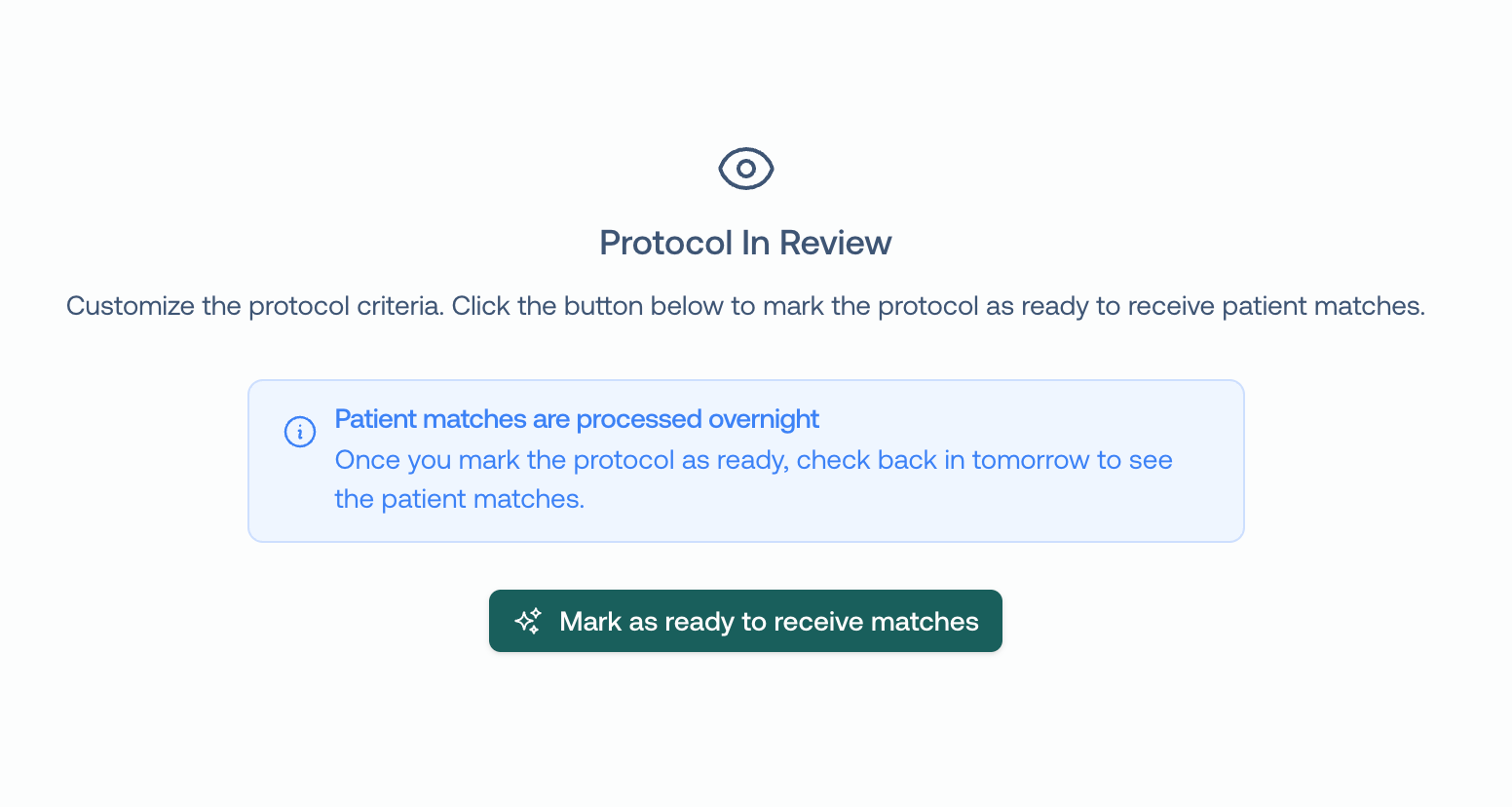
After you have successfully reviewed the protocol and are ready to match, click Mark as ready to receive matches. This will kick off the matching engine to begin finding patients that match your criteria! Right now, this is an overnight job, but later this month you will have matches streaming right away.
We hope this is a big unlock for your team’s ability to flexibly recruit for studies. We’d love to hear how you’re using it!

~Trevor @ Trially

Respond to this email, or book time with us here if you have any questions or would like a demo for your team.
New

Protocol review, add custom criteria, remove criteria

Quick Summary

The Protocol Review feature allows clinical research staff to review, edit, and add trial criteria before patient matching begins.

Step-by-Step Instructions

  1. Upload your protocol document using the "Upload Protocol" button

  2. Wait 2-4 minutes for the system to process the document

  3. Access the protocol when it shows "In Review" status

  4. Review the AI-parsed criteria displayed under the protocol name

  5. Edit criteria by clicking the edit icon (pencil) next to any criterion

  6. Remove unwanted criteria using the remove icon (trash)

  7. Add custom criteria by clicking "Create Criterion"

  8. Finalize your review by sending the protocol to matching

This process allows you to customize your recruiting plan before patient matching begins.

Details

When you upload a protocol, it will take 2-4 minutes to process into the system, and then be marked as In Review

During the Review process, you will have the option to edit and remove criteria to customize your recruiting plan.

Say we’ve identified an I/E criteria, that we know won’t be present in the EHR, like this one:

We can simply remove it:

Or, imagine we’d like to edit a criteria. BMI can change, so we may want to loosen this, knowing we can get an exact measurement at the screening visit:

We can edit it directly in the app, like so:

After we’ve reviewed the protocol and are ready to match, we click Mark as ready to receive matches. This will kick off the matching engine to begin finding patients that match your criteria!

This should significantly aid in your team’s ability to flexibly recruit for studies. We’d love to hear how you’re using it!

~Trevor

Population Analytics Dashboard: Graphs View Now Live!

Hi folks, and welcome to your product update from Trially!

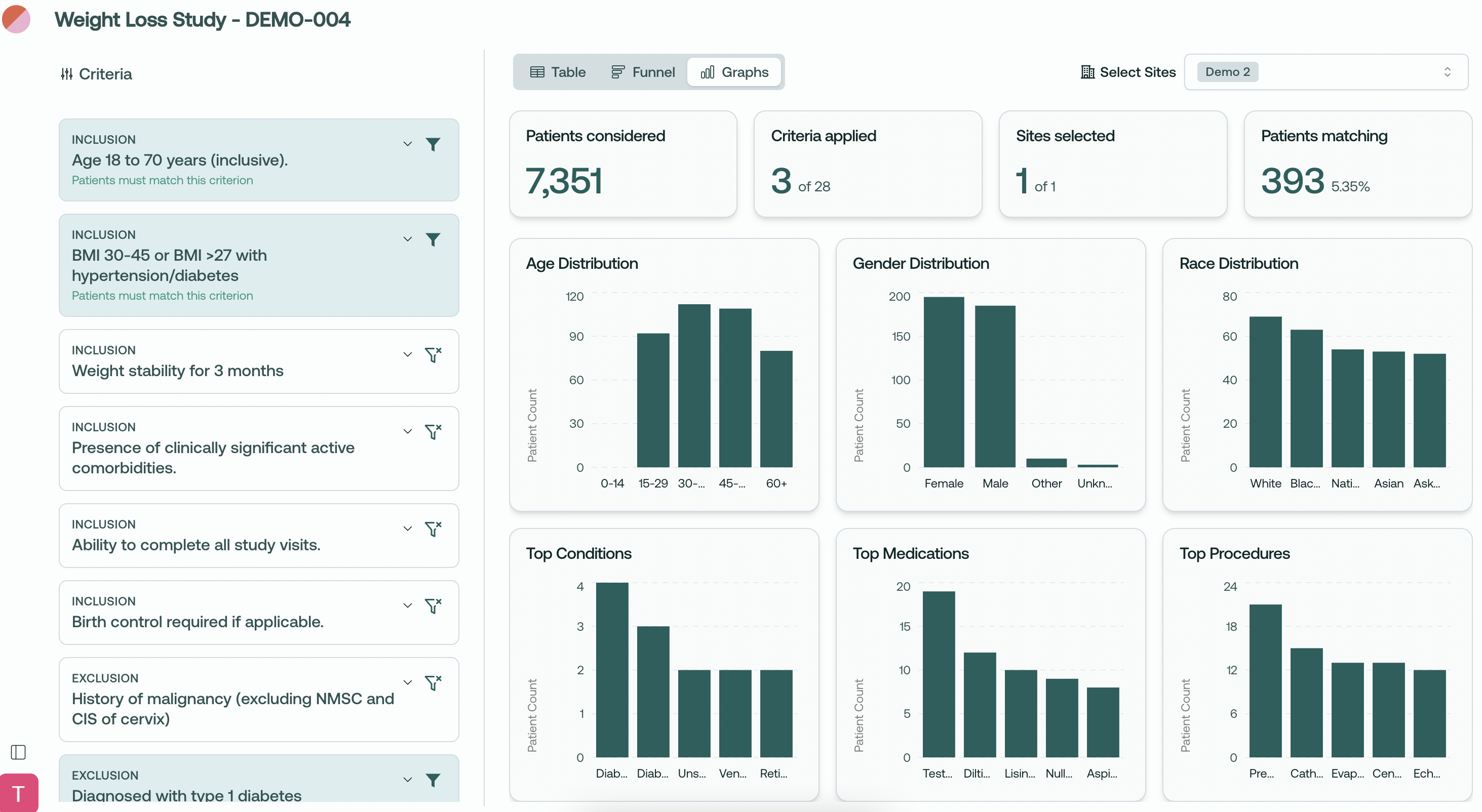
We're excited to introduce an update to our population analytics giving you deeper insights into your patient populations across multiple dimensions.

Here's what's new:

Comprehensive Data Visualization

  • View distribution charts for key patient demographics

  • Analyze your patient population through multiple visual perspectives

  • Toggle between Table, Funnel, and our new Graphs views

Demographic Insights

  • Age Distribution: See patient age breakdowns across standard age ranges

  • Gender Distribution: Understand gender representation in your potential trial population

  • Race Distribution: Analyze racial demographics for better diversity planning

Clinical Insights

  • Top Conditions: View most common comorbidities in your matching population

  • Top Medications: Identify prevalent medication usage among potential participants

  • Top Procedures: Analyze common medical procedures your patient pool has undergone

Multi-dimensional Analysis

  • Select and analyze patient populations across multiple sites

  • See how your inclusion/exclusion criteria affect different demographic groups

  • Get real-time metrics showing the impact on your eligible pool

At-a-glance Summary Statistics

  • Total patients considered

  • Active criteria applied

  • Sites selected with clear site counter

  • Final matching patient count with percentage

Use Cases

  • Assess diversity representation in your trial population

  • Evaluate demographic feasibility across sites

  • Make data-driven decisions about inclusion/exclusion criteria

  • Understand the clinical profile of your potential participants

  • Improve protocol feedback based on real population insights

What do you think about the new Graphs view? We'd love to hear how you're using these visualizations in your planning!

Thanks for all your feedback - please keep it coming!

~ Trevor @ Trially

New

Earlier updates