Protocol review, add custom criteria, remove criteria
Quick Summary
The Protocol Review feature allows clinical research staff to review, edit, and add trial criteria before patient matching begins.
Step-by-Step Instructions
Upload your protocol document using the "Upload Protocol" button
Wait 2-4 minutes for the system to process the document
Access the protocol when it shows "In Review" status
Review the AI-parsed criteria displayed under the protocol name
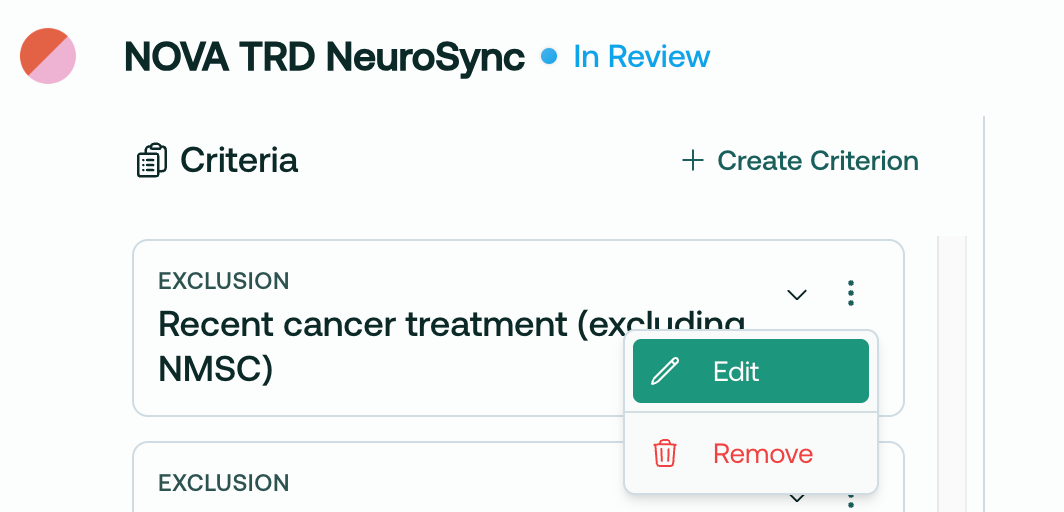
Edit criteria by clicking the edit icon (pencil) next to any criterion
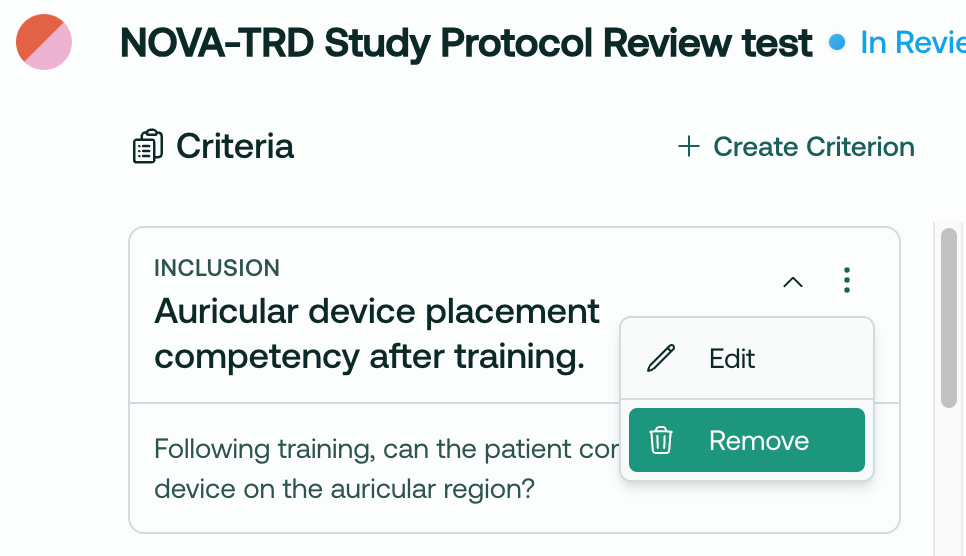
Remove unwanted criteria using the remove icon (trash)
Add custom criteria by clicking "Create Criterion"
Finalize your review by sending the protocol to matching
This process allows you to customize your recruiting plan before patient matching begins.
Details
When you upload a protocol, it will take 2-4 minutes to process into the system, and then be marked as In Review
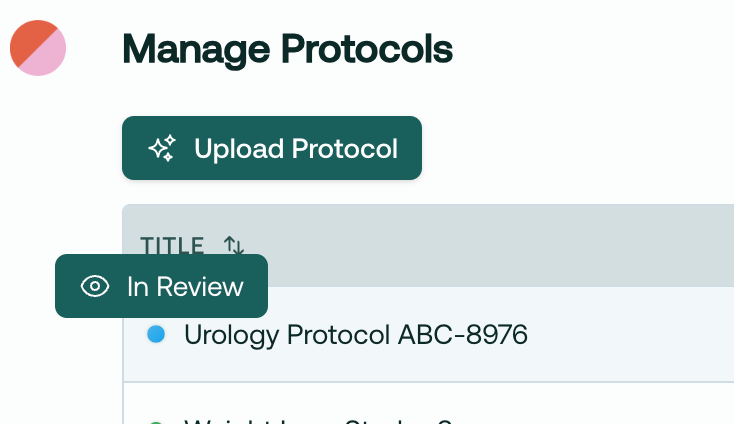
During the Review process, you will have the option to edit and remove criteria to customize your recruiting plan.
Say we’ve identified an I/E criteria, that we know won’t be present in the EHR, like this one:
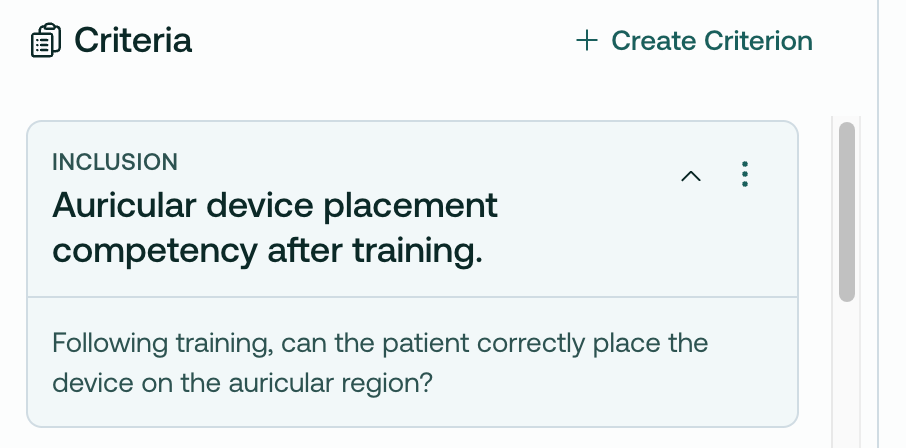
We can simply remove it:
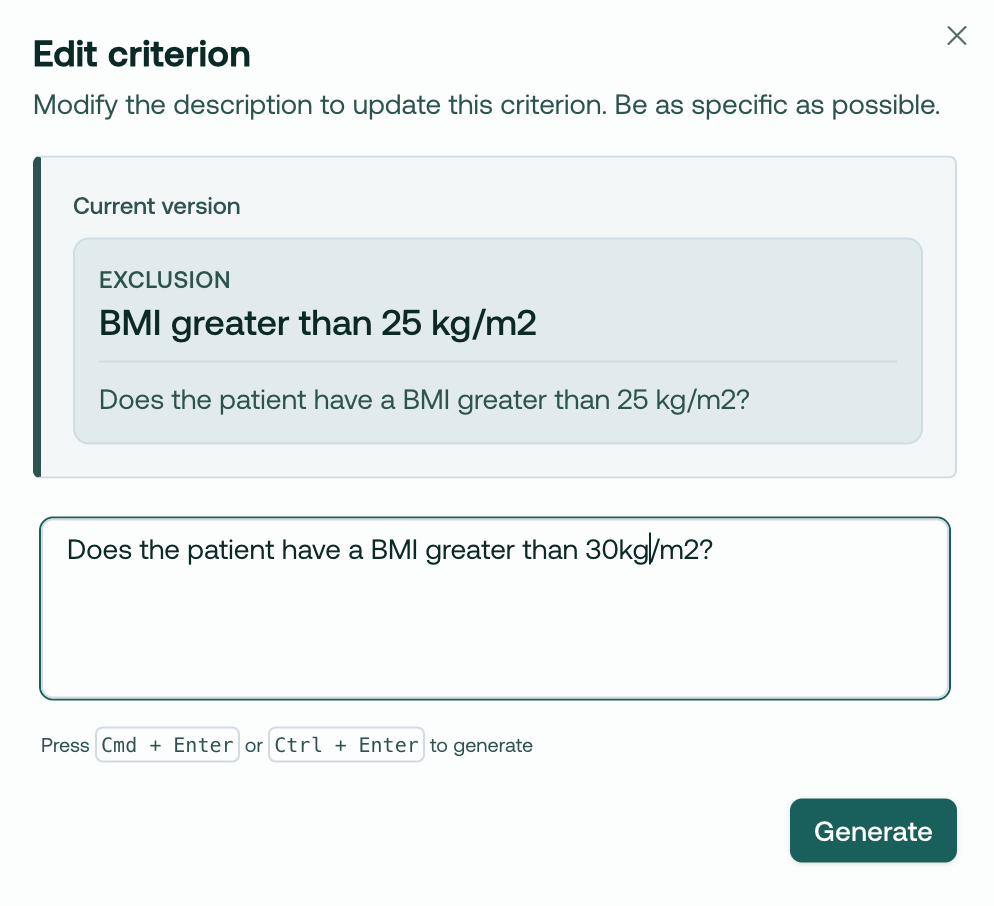
Or, imagine we’d like to edit a criteria. BMI can change, so we may want to loosen this, knowing we can get an exact measurement at the screening visit:
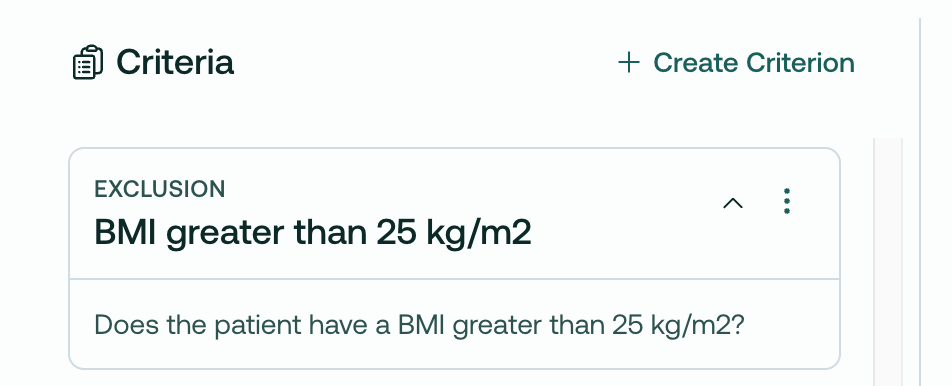
We can edit it directly in the app, like so:
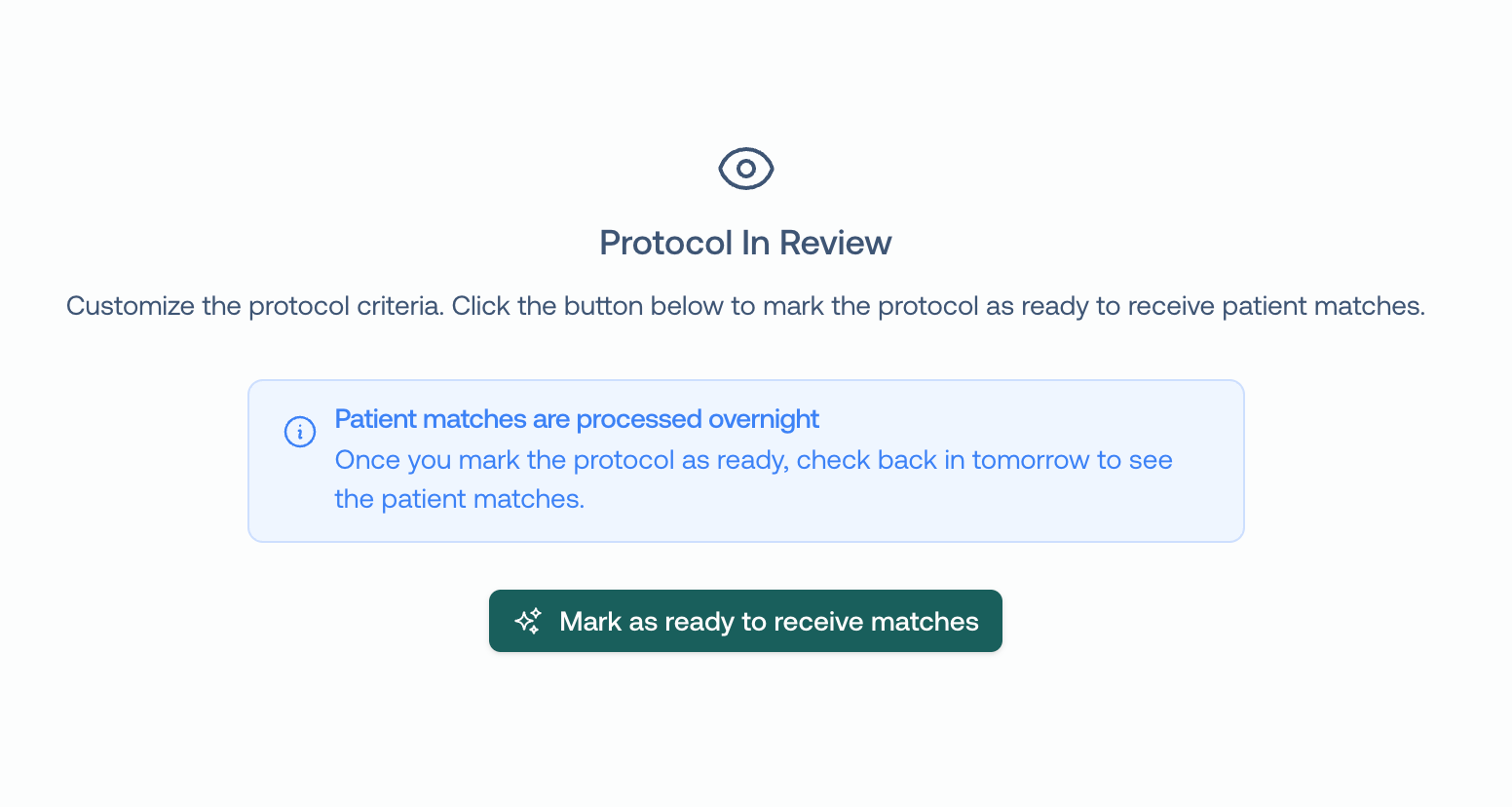
After we’ve reviewed the protocol and are ready to match, we click Mark as ready to receive matches. This will kick off the matching engine to begin finding patients that match your criteria!
This should significantly aid in your team’s ability to flexibly recruit for studies. We’d love to hear how you’re using it!
~Trevor